> ## Documentation Index
> Fetch the complete documentation index at: https://mainwp-docs-openapi-6-1-5-fixes.mintlify.site/llms.txt
> Use this file to discover all available pages before exploring further.

# SSL Monitor

> MainWP SSL Monitor Extension allows you to keep an eye on your Child Site(s) SSL Certificates and sends email alerts when monitored certificates are nearing expiration.

## What You'll Learn

* Checking SSL certificate status for HTTPS child sites
* Viewing detailed certificate information
* Scheduling automated SSL checks
* Overwriting general settings for individual sites

***

<div id="addon-data" style={{display: 'none'}} data-title="SSL Monitor" data-purchase-url="https://mainwp.com/extension/ssl-monitor/" data-pricing-tier="pro" data-bundle="MainWP Pro" data-addon-type="extension" data-version="5.1.4" data-developer="MainWP" data-changelog-url="https://mainwp.com/changelog/mainwp-ssl-monitor-extension/" data-owned-by="Jestart LLC" data-privacy-url="https://mainwp.com/mainwp-plugin-privacy-policy/" />

<Info>
  **Extension Add-on** - This add-on provides standalone functionality within MainWP Dashboard. No third-party plugins required.
</Info>

<iframe className="w-full aspect-video rounded-xl" src="https://www.youtube.com/embed/HYb9xZ7Lxe0" title="SSL Monitor - Video Tutorial" frameBorder="0" allow="accelerometer; autoplay; clipboard-write; encrypted-media; gyroscope; picture-in-picture" allowFullScreen />

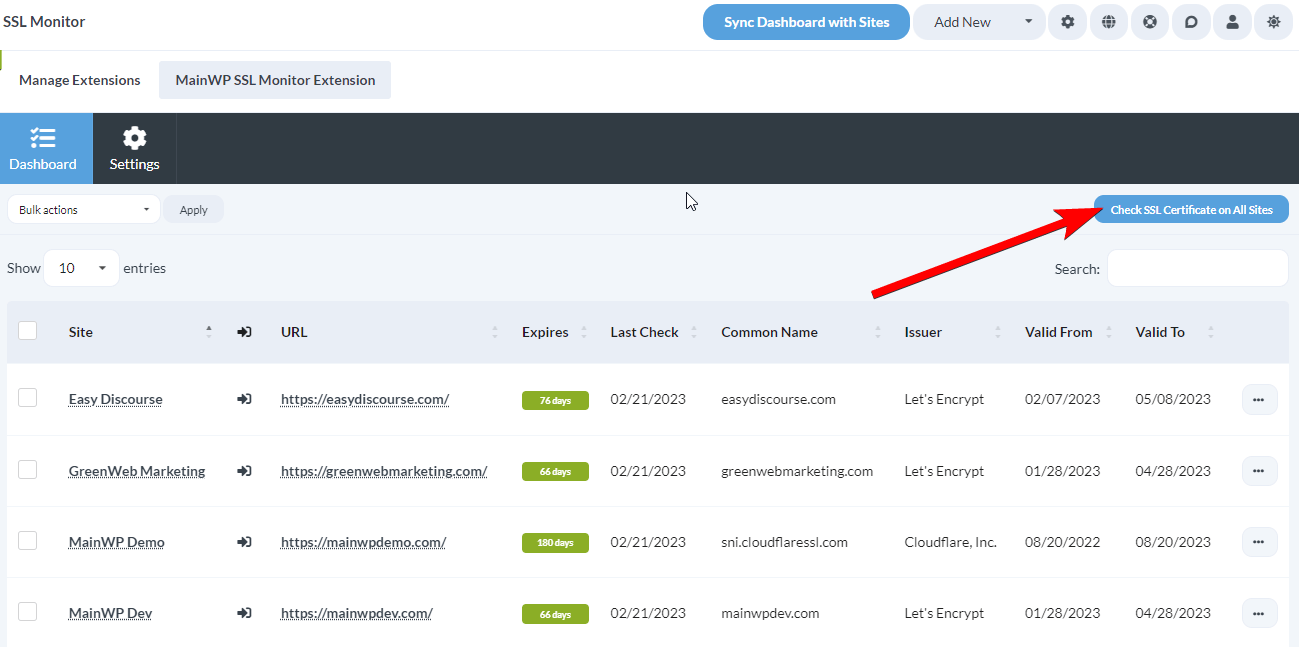
The SSL Monitor extension allows you to check information about SSL certificates for your HTTPS child sites. The table on the **Dashboard** page of the SSL Monitor extension gives you insight into the most important information, such as the expiration date, who the issuer is, and the common name.

<Frame>
  <img src="https://mintcdn.com/mainwp-docs-openapi-6-1-5-fixes/FOIk3DG42Q1iFd72/images/add-ons/ssl-monitor-settings.png?fit=max&auto=format&n=FOIk3DG42Q1iFd72&q=85&s=1ed5cb7b0c78b8b00b1aaeca7748d736" alt="Screenshot of SSL Monitor dashboard showing certificate expiration dates, issuers, and common names" width="1313" height="662" data-path="images/add-ons/ssl-monitor-settings.png" />
</Frame>

The extension also provides all the detailed information about the SSL certificates that you may need.

## Install the SSL Monitor extension

<Steps>
  <Step title="Go to your MainWP Dashboard" />

  <Step title="Go to the MainWP > Add-ons > Manage Add-ons page" />

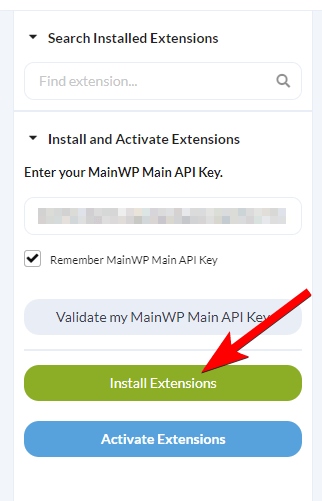
  <Step title="Click the Install Add-ons button">
    Click the **Install Add-ons** button <img src="https://mintcdn.com/mainwp-docs-openapi-6-1-5-fixes/G5x3KdeCLBBQwkzj/images/add-ons/2833252556cc.png?fit=max&auto=format&n=G5x3KdeCLBBQwkzj&q=85&s=c557473cb8c4bdfb67da38d826d429e2" alt="Screenshot highlighting the Install Add-ons button on the Add-ons page" width="322" height="501" data-path="images/add-ons/2833252556cc.png" />
  </Step>

  <Step title="Locate the SSL Monitor extension and select it" />

  <Step title="Click the Install button" />

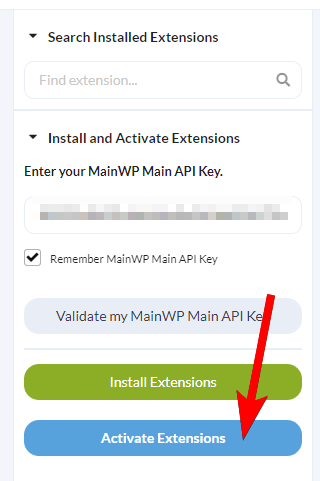
  <Step title="Once the installation process is complete, click the Activate Add-ons button.">
    Once the installation process is complete, click the **Activate Add-ons** button. <img src="https://mintcdn.com/mainwp-docs-openapi-6-1-5-fixes/d4G0QMpnE6JE0wOT/images/add-ons/578da5c7dc89.png?fit=max&auto=format&n=d4G0QMpnE6JE0wOT&q=85&s=ff99c755f67528304b5c9d238c3cccd9" alt="Screenshot showing the Activate Add-ons button after SSL Monitor installation" width="320" height="481" data-path="images/add-ons/578da5c7dc89.png" />
  </Step>
</Steps>

## Check SSL Certificates

### For all Sites

<Steps>
  <Step title="Go to the MainWP > Add-ons > Monitoring > SSL Monitor > Dashboard page." />

  <Step title="Click the Check SSL Certificate on All Sites button in the top right" />
</Steps>

<img src="https://mintcdn.com/mainwp-docs-openapi-6-1-5-fixes/G5x3KdeCLBBQwkzj/images/add-ons/34e0cb37356d.png?fit=max&auto=format&n=G5x3KdeCLBBQwkzj&q=85&s=fcfbfc39f027c27b3729ce3ca2784738" alt="Screenshot showing Check SSL Certificate on All Sites button" width="1299" height="647" data-path="images/add-ons/34e0cb37356d.png" />

### For individual Sites

<Steps>
  <Step title="Go to the MainWP > Add-ons > Monitoring > SSL Monitor > Dashboard page." />

  <Step title="Locate the desired site in the table." />

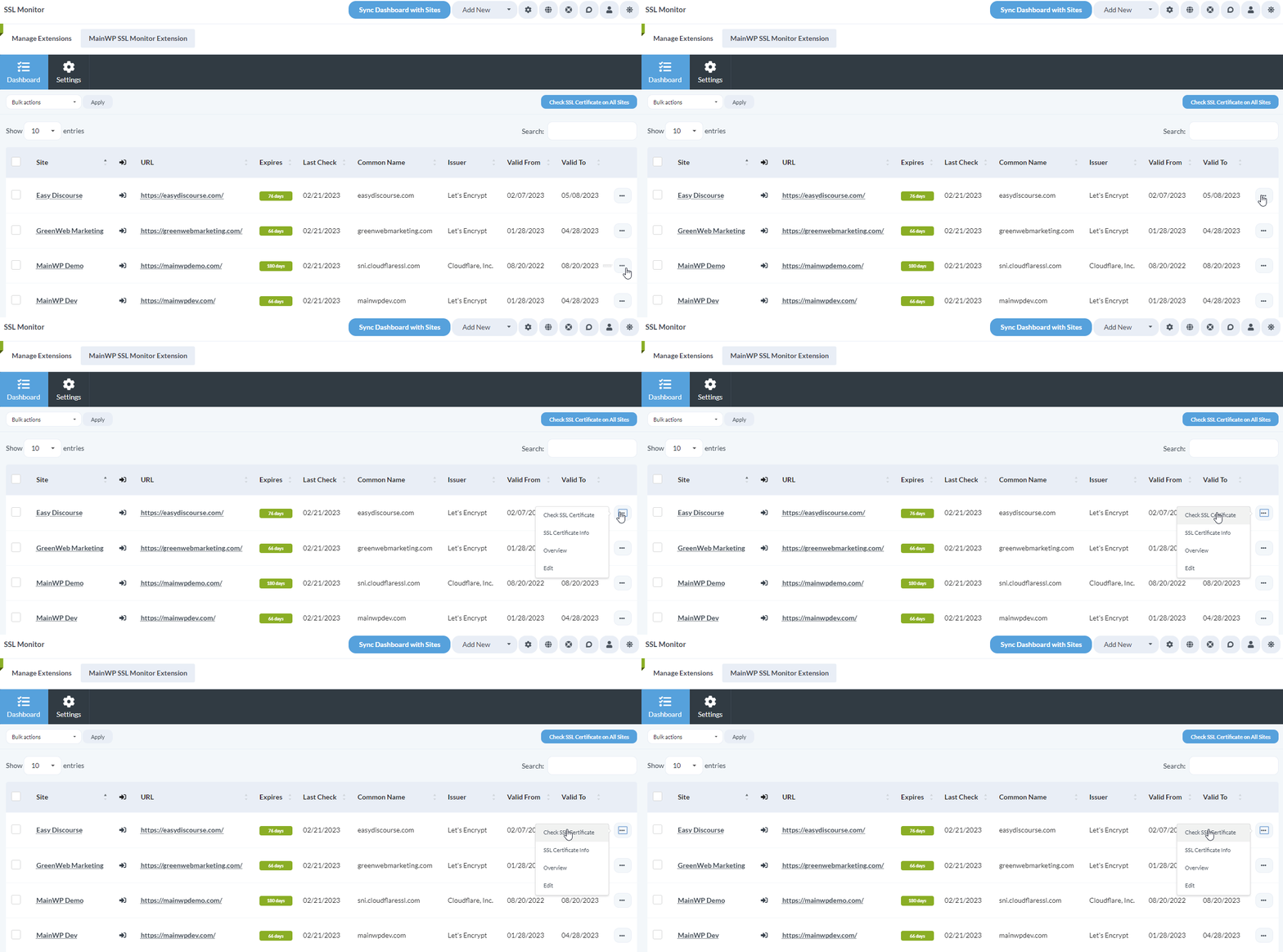
  <Step title="Click the Check SSL Certificate action in the ellipsis menu." />
</Steps>

<img src="https://mintcdn.com/mainwp-docs-openapi-6-1-5-fixes/FOIk3DG42Q1iFd72/images/add-ons/ssl-monitor-overview.gif?s=222e12842e5410fa710909c079a8ff3b" alt="Animated screenshot showing Check SSL Certificate action in ellipsis menu" width="1303" height="645" data-path="images/add-ons/ssl-monitor-overview.gif" />

## View Detailed Certificate Information

<Steps>
  <Step title="Go to the MainWP > Add-ons > Monitoring > SSL Monitor > Dashboard page." />

  <Step title="Locate the desired site in the table" />

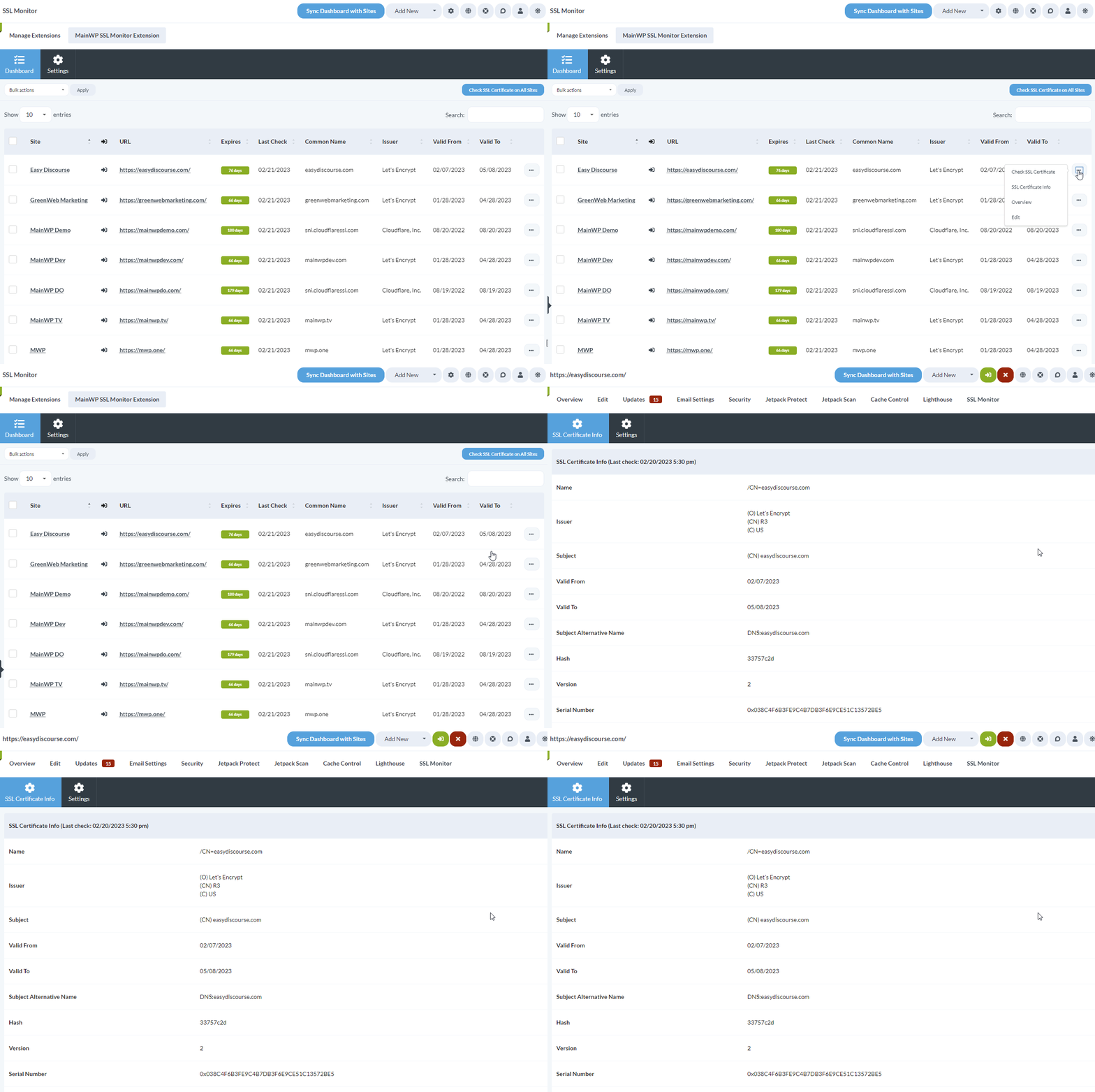
  <Step title="Click the SSL Certificate Info action in the ellipsis menu." />
</Steps>

<img src="https://mintcdn.com/mainwp-docs-openapi-6-1-5-fixes/G5x3KdeCLBBQwkzj/images/add-ons/0906be47c99b.gif?s=836a4d1691a40525c3450d2b167e51c0" alt="Animated screenshot showing SSL Certificate Info action and detailed certificate view" width="1300" height="864" data-path="images/add-ons/0906be47c99b.gif" />

## Adjust the SSL Monitor Settings

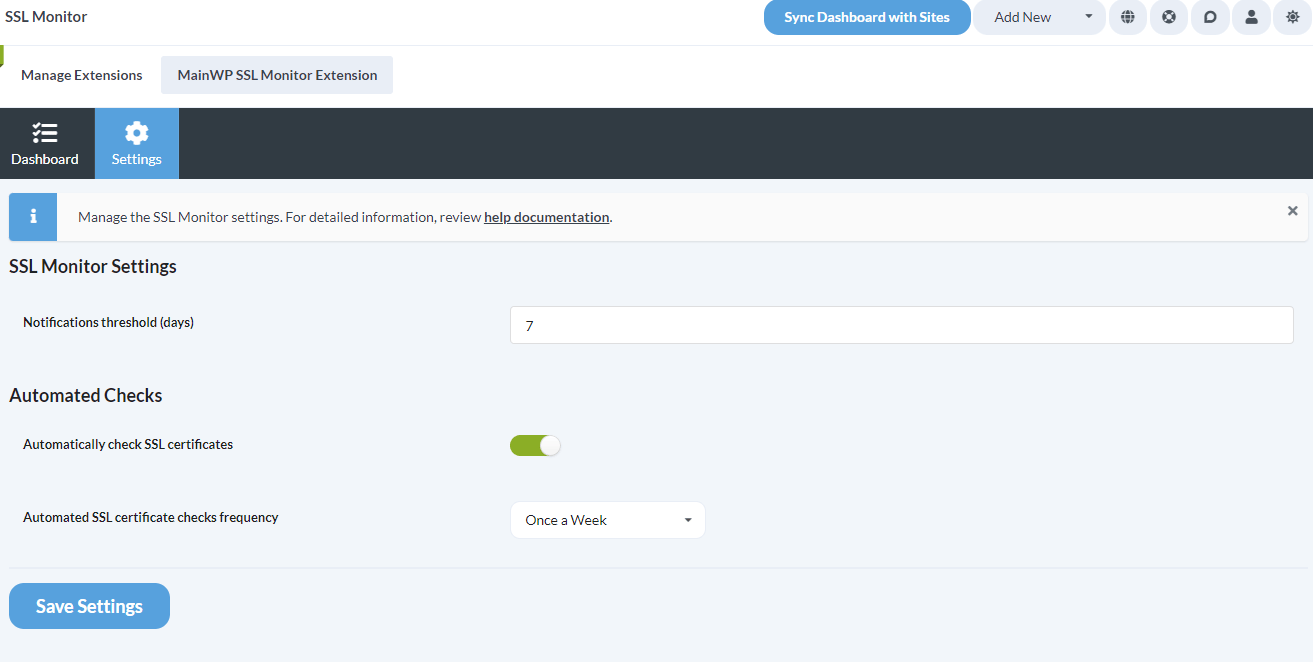
<img src="https://mintcdn.com/mainwp-docs-openapi-6-1-5-fixes/FOIk3DG42Q1iFd72/images/add-ons/ssl-monitor-settings.png?fit=max&auto=format&n=FOIk3DG42Q1iFd72&q=85&s=1ed5cb7b0c78b8b00b1aaeca7748d736" alt="Screenshot of SSL Monitor settings page with notification threshold and automated check options" width="1313" height="662" data-path="images/add-ons/ssl-monitor-settings.png" />

<Steps>
  <Step title="Go to the MainWP > Add-ons > Monitoring > SSL Monitor > Settings page.">
    Go to the **MainWP > Add-ons > Monitoring > SSL Monitor > Settings** page.

    1. **Notifications threshold (days):** you will be notified by email if an SSL Certificate for any monitored site reaches the threshold you define here.
    2. **Automated Checks:** you can enable automatic SSL certificate checks and set the frequency for those checks
  </Step>

  <Step title="After you've adjusted the settings, click the Save Settings button" />
</Steps>

## Adjust the SSL Monitor settings on a Single Site

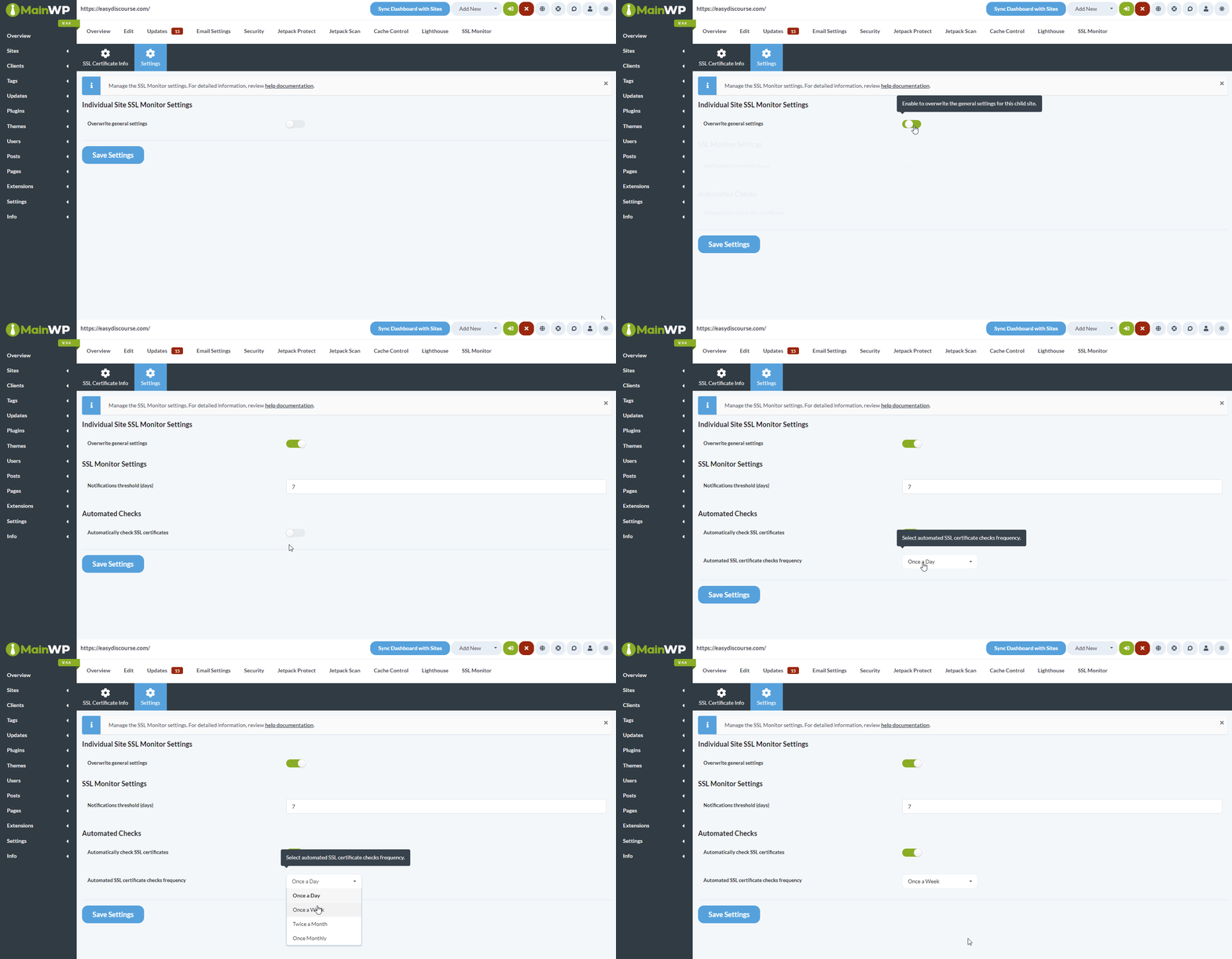
<img src="https://mintcdn.com/mainwp-docs-openapi-6-1-5-fixes/G5x3KdeCLBBQwkzj/images/add-ons/4f9770763ce7.gif?s=2f799ef94fa005d39ca93b552a7f22fa" alt="Animated screenshot showing how to overwrite general SSL Monitor settings for a single site" width="1599" height="831" data-path="images/add-ons/4f9770763ce7.gif" />

<Steps>
  <Step title="Login to your MainWP Dashboard" />

  <Step title="Go to the MainWP > Sites > Manage Sites page" />

  <Step title="Locate the Child site, open its Dashboard, and go to SSL Monitor > Settings page">
    Locate the Child site, open its Dashboard, and go to **SSL Monitor > Settings** page

    1. Overwrite the general settings by enabling the **Overwrite general settings** toggle
    2. Adjust the Notifications threshold (days) and whether you want to automatically check SSL certificates for this specific site
  </Step>

  <Step title="Click the Save Settings button" />
</Steps>

## Check Sites via WP CLI

If you prefer running SSL checks from the command line, or want to trigger them from a script or cron job outside of the MainWP Dashboard's built-in scheduler, use the WP-CLI commands the extension registers under `wp mainwp-ssl-monitor`.

Both commands accept either a comma-separated list of child site IDs or the `--all` flag to target every child site.

Check the SSL certificate for one or more sites:

```bash theme={null}
wp mainwp-ssl-monitor check 2
wp mainwp-ssl-monitor check 2,5
```

Check all sites:

```bash theme={null}
wp mainwp-ssl-monitor check --all
```

View saved SSL certificate information for one or more sites without triggering a new check:

```bash theme={null}
wp mainwp-ssl-monitor info 2
wp mainwp-ssl-monitor info 2,5
wp mainwp-ssl-monitor info --all
```

## SSL Monitor REST API

All MainWP REST API calls, including full documentation and examples, are publicly available on [Postman](https://www.postman.com/mainwp/workspace/mainwp/overview). For more details about enabling the MainWP REST API and managing keys, see [REST API Overview](/api-reference/rest-api/overview).

***

## Related Resources

* [Monitoring Add-ons](/add-ons/monitoring) - Browse all monitoring tools
* [Domain Monitor](/add-ons/monitoring/mainwp-domain-monitor-extension) - Track domain expiration
* [Advanced Uptime Monitor](/add-ons/monitoring/advanced-uptime-monitor-extension) - Monitor site uptime