> ## Documentation Index
> Fetch the complete documentation index at: https://mainwp-docs-openapi-6-1-5-fixes.mintlify.site/llms.txt
> Use this file to discover all available pages before exploring further.
# MainWP.com Login Security
> Enable two-factor authentication (2FA) on your MainWP.com account and manage password security settings.
Two-factor authentication (2FA) adds an extra layer of security to your MainWP.com account by requiring a second verification method beyond your password.
## What You'll Learn
* How to enable 2FA on your MainWP.com account
* How to manage 2FA settings
* How to reset your account password
***
## Enable Two-Factor Authentication
Log in to your account at [mainwp.com/my-account](https://mainwp.com/my-account/). You'll see a notice prompting 2FA configuration.
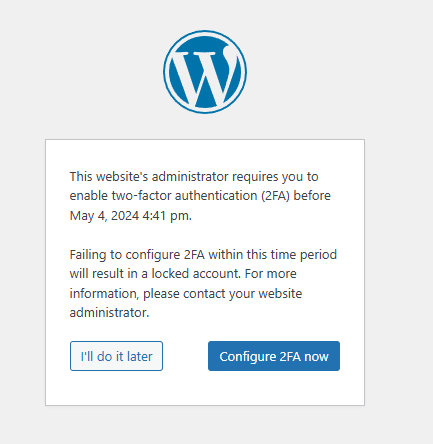 Click **Configure 2FA now** to proceed.
Click **Configure 2FA**, then **Next Step**. Choose your verification method:
* **One-time code via 2FA app** (authenticator app)
* **One-time code via email**
Click **Configure 2FA now** to proceed.
Click **Configure 2FA**, then **Next Step**. Choose your verification method:
* **One-time code via 2FA app** (authenticator app)
* **One-time code via email**
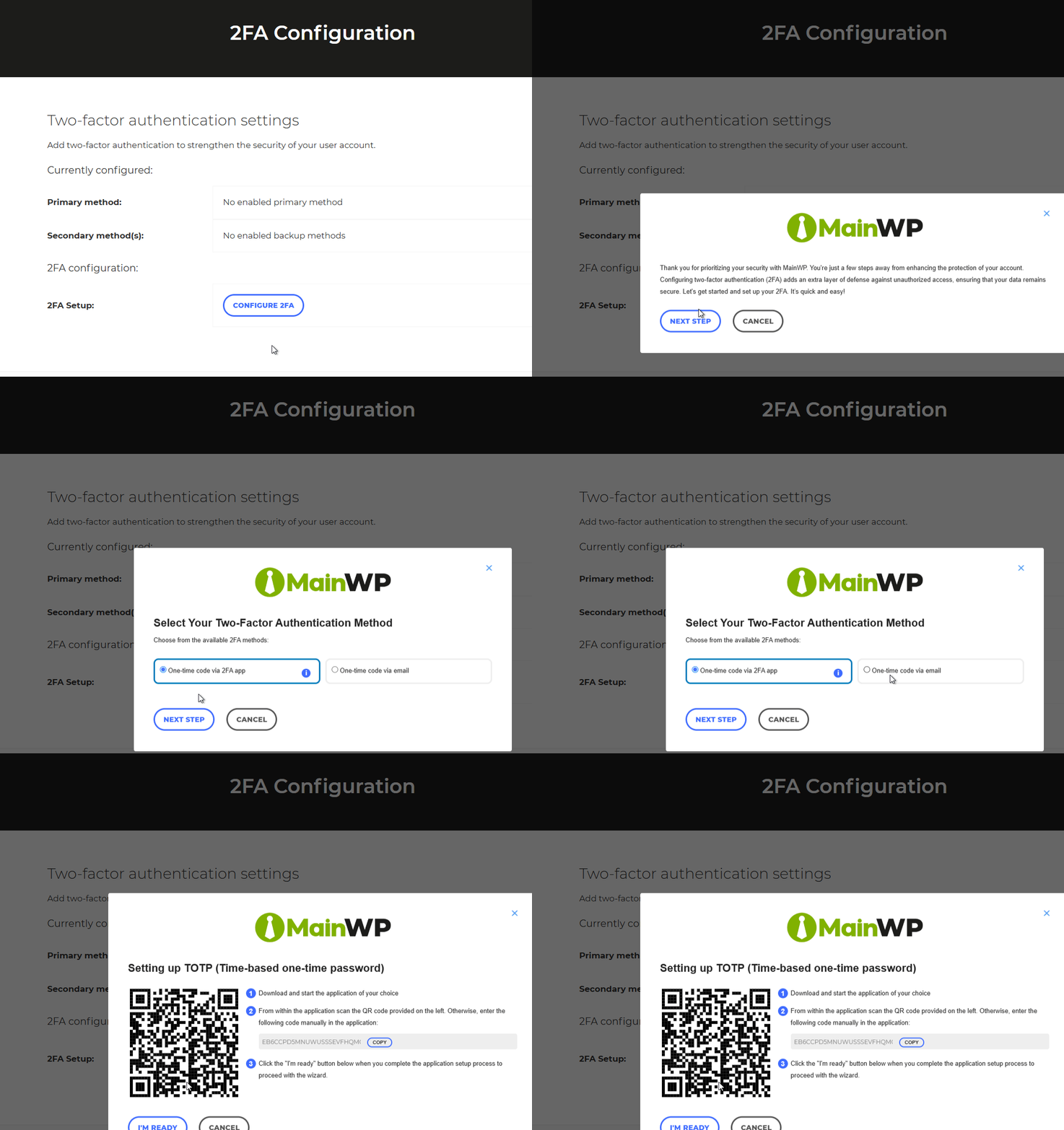 If using an authenticator app, scan the QR code or enter the code manually into your app (Google Authenticator, Authy, 1Password, etc.).
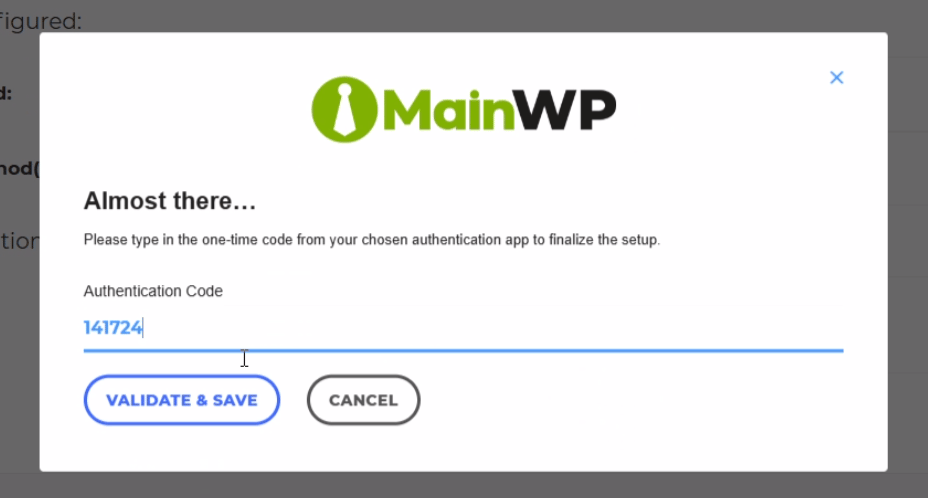
Once your authenticator app displays a six-digit code, click **I'M READY**. Enter the code and click **Validate & Save**.
If using an authenticator app, scan the QR code or enter the code manually into your app (Google Authenticator, Authy, 1Password, etc.).
Once your authenticator app displays a six-digit code, click **I'M READY**. Enter the code and click **Validate & Save**.
 Generate and save a list of backup codes in case you lose access to your authenticator app.
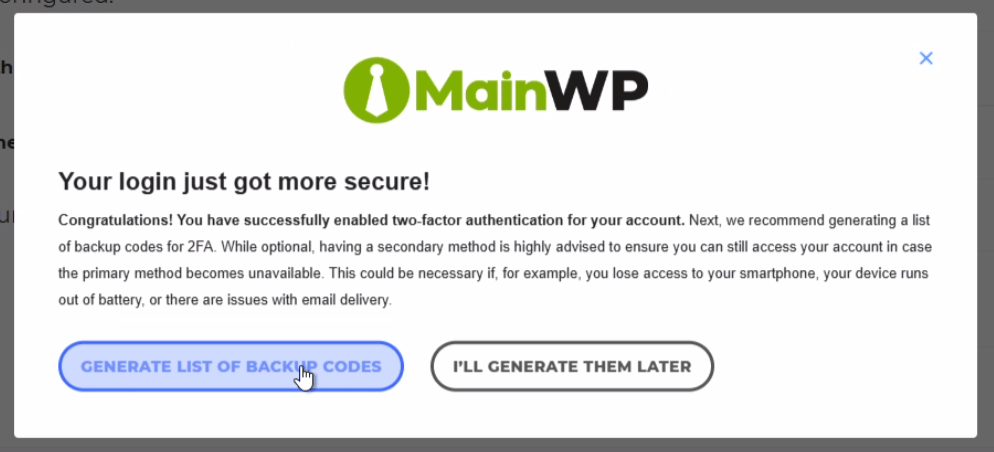 Store backup codes securely. You'll need them if you lose access to your authenticator app.
***
## Manage 2FA Settings
After enabling 2FA, you can manage your settings:
Log in to [mainwp.com/my-account](https://mainwp.com/my-account/) and navigate to **2FA Settings**.
Store backup codes securely. You'll need them if you lose access to your authenticator app.
***
## Manage 2FA Settings
After enabling 2FA, you can manage your settings:
Log in to [mainwp.com/my-account](https://mainwp.com/my-account/) and navigate to **2FA Settings**.
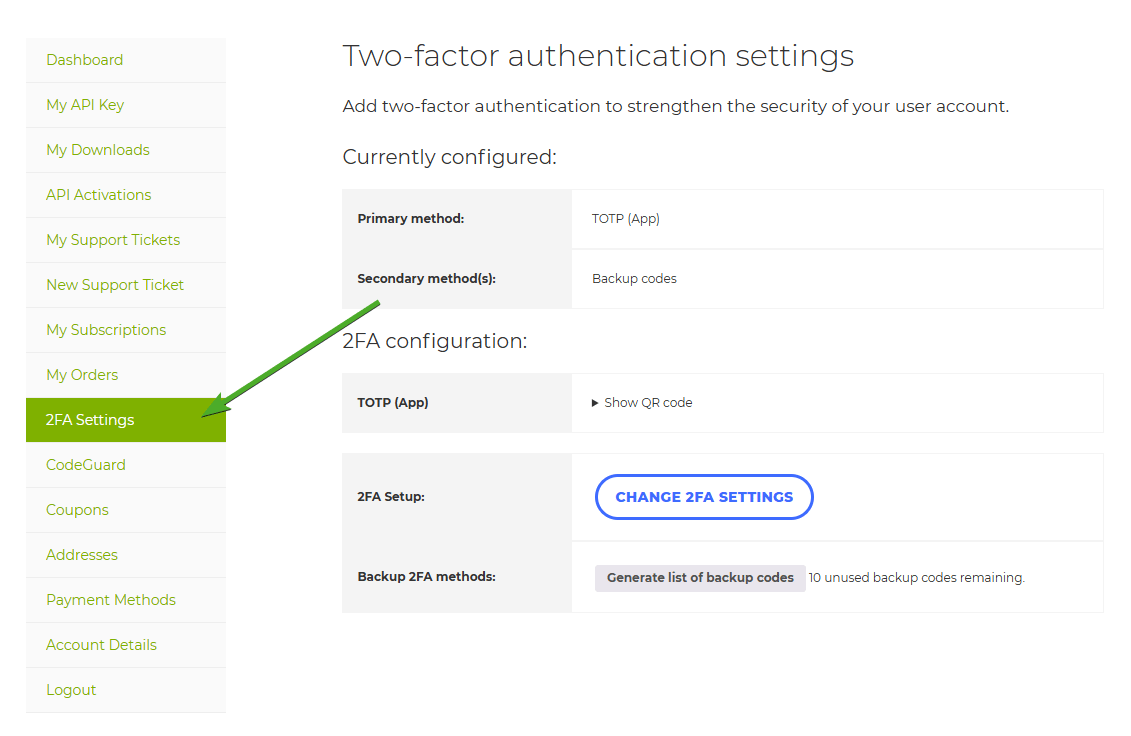 From this page, you can:
* Generate new backup codes
* Show the QR code again (to add to another device)
* Reset the authenticator app key
* Change the authentication method to email
***
## Reset Your Password
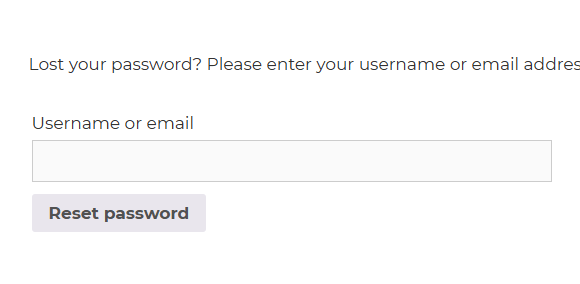
Navigate to [mainwp.com/my-account/lost-password](https://mainwp.com/my-account/lost-password/).
Enter your username or email and click **Reset password**.
From this page, you can:
* Generate new backup codes
* Show the QR code again (to add to another device)
* Reset the authenticator app key
* Change the authentication method to email
***
## Reset Your Password
Navigate to [mainwp.com/my-account/lost-password](https://mainwp.com/my-account/lost-password/).
Enter your username or email and click **Reset password**.
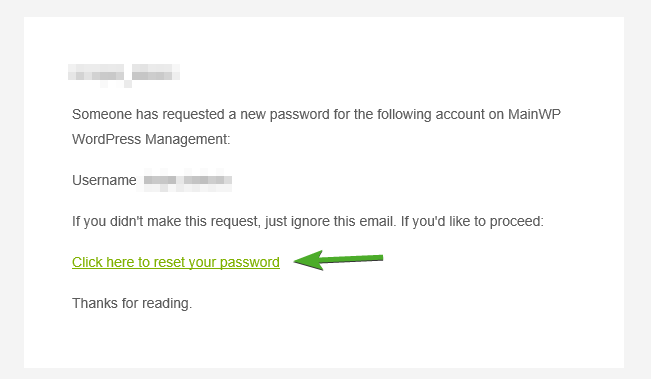
 Click the link in the password reset email you receive.
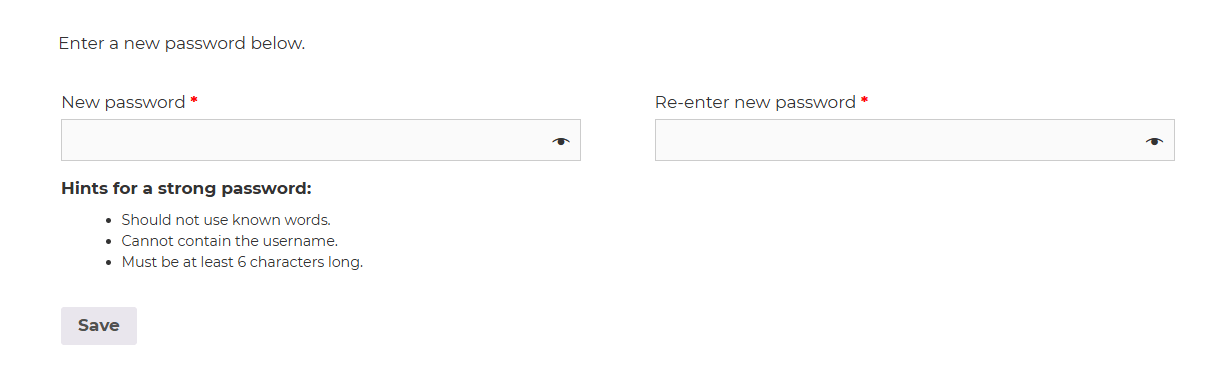
 Enter your new password twice and click **Save**.
 ***
## Self-Check Checklist
* [ ] 2FA enabled on MainWP.com account
* [ ] Authenticator app configured (if using app-based 2FA)
* [ ] Backup codes generated and stored securely
* [ ] Successfully logged in with 2FA verification
***
## Related Resources
* [Two-Factor Authentication for MainWP Dashboard](/advanced/miscellaneous/how-to-add-two-factor-authentication-2fa-to-mainwp) - 2FA for your WordPress Dashboard
* [MainWP Security](/getting-started/how-secure-is-the-mainwp-plugin) - Overall security practices
***
## Self-Check Checklist
* [ ] 2FA enabled on MainWP.com account
* [ ] Authenticator app configured (if using app-based 2FA)
* [ ] Backup codes generated and stored securely
* [ ] Successfully logged in with 2FA verification
***
## Related Resources
* [Two-Factor Authentication for MainWP Dashboard](/advanced/miscellaneous/how-to-add-two-factor-authentication-2fa-to-mainwp) - 2FA for your WordPress Dashboard
* [MainWP Security](/getting-started/how-secure-is-the-mainwp-plugin) - Overall security practices