> ## Documentation Index
> Fetch the complete documentation index at: https://mainwp-docs-openapi-6-1-5-fixes.mintlify.site/llms.txt
> Use this file to discover all available pages before exploring further.
# What profile picture is shown in the top right of the MainWP Dashboard?
> MainWP displays your Gravatar in the Dashboard toolbar if Show Avatars is enabled. Otherwise it shows a generic user icon or the default WordPress avatar.
The user icon in the top right corner of your MainWP Dashboard comes from your WordPress user profile and Gravatar settings. MainWP follows standard WordPress avatar behavior.
## What You'll Learn
* How MainWP selects your profile picture
* How to change your avatar
* WordPress avatar settings
***
## How the Avatar is Selected
MainWP checks these settings in order:
### 1. Show Avatars Disabled
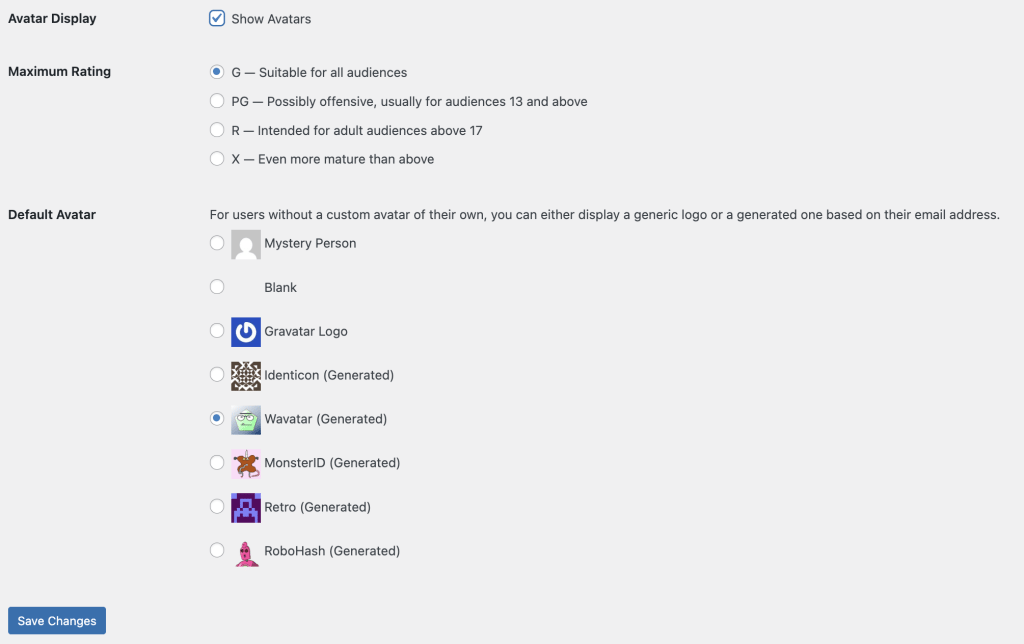
If **Show Avatars** is disabled on your Dashboard site, a generic user icon appears.
**Location:** WP Admin > Settings > Discussion
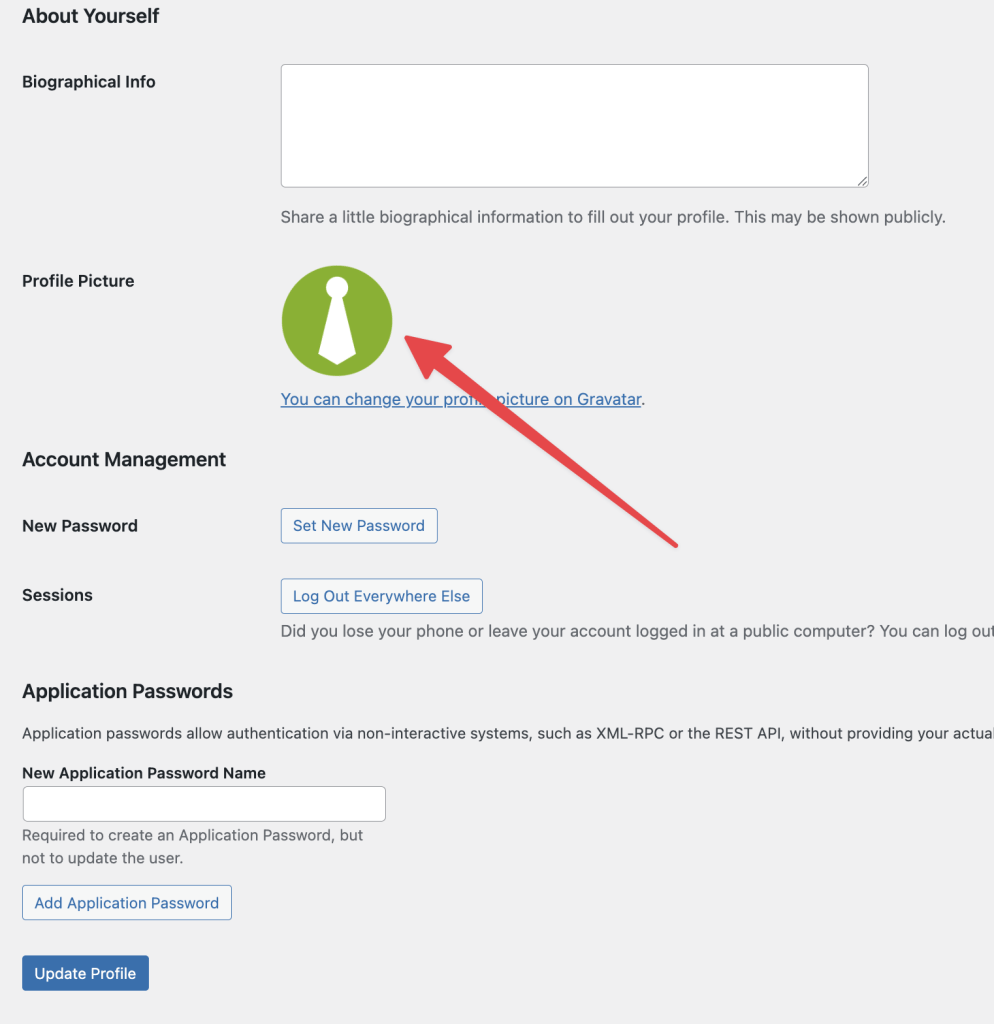
 ### 2. Gravatar Linked
If **Show Avatars** is enabled and your email address is linked to a [Gravatar](https://gravatar.com/) account, your Gravatar image displays.
**Location:** WP Admin > Users > Profile
### 2. Gravatar Linked
If **Show Avatars** is enabled and your email address is linked to a [Gravatar](https://gravatar.com/) account, your Gravatar image displays.
**Location:** WP Admin > Users > Profile
 ### 3. Default Avatar
If you don't have a Gravatar, WordPress displays the default avatar selected in Discussion settings.
**Location:** WP Admin > Settings > Discussion
### 3. Default Avatar
If you don't have a Gravatar, WordPress displays the default avatar selected in Discussion settings.
**Location:** WP Admin > Settings > Discussion
 ***
## Change Your Profile Picture
| Method | Steps |
| -------------- | ---------------------------------------------------------------------------------------------------- |
| Use Gravatar | Create an account at [gravatar.com](https://gravatar.com) with the same email as your WordPress user |
| Change default | Go to **WP Admin > Settings > Discussion** and select a different default avatar |
| Plugin | Install a user avatar plugin to upload custom profile pictures |
***
## Self-Check Checklist
* [ ] Check if Show Avatars is enabled (WP Admin > Settings > Discussion)
* [ ] Verify email address in your user profile
* [ ] Gravatar account linked to your email (optional)
* [ ] Avatar displays correctly in Dashboard toolbar
***
## Related Resources
* [Customize Dashboard Logo](/customization/customize-mainwp-dashboard-logo) - Change the MainWP logo
* [White Label Extension](/add-ons/agency/white-label-extension) - Complete Dashboard branding
***
## Change Your Profile Picture
| Method | Steps |
| -------------- | ---------------------------------------------------------------------------------------------------- |
| Use Gravatar | Create an account at [gravatar.com](https://gravatar.com) with the same email as your WordPress user |
| Change default | Go to **WP Admin > Settings > Discussion** and select a different default avatar |
| Plugin | Install a user avatar plugin to upload custom profile pictures |
***
## Self-Check Checklist
* [ ] Check if Show Avatars is enabled (WP Admin > Settings > Discussion)
* [ ] Verify email address in your user profile
* [ ] Gravatar account linked to your email (optional)
* [ ] Avatar displays correctly in Dashboard toolbar
***
## Related Resources
* [Customize Dashboard Logo](/customization/customize-mainwp-dashboard-logo) - Change the MainWP logo
* [White Label Extension](/add-ons/agency/white-label-extension) - Complete Dashboard branding