
What You’ll Learn
- Why plugins default to English after bulk install
- How to update translations via MainWP Dashboard
- How to update translations on individual child sites
Why This Happens
When you install a plugin directly on a WordPress site, translations are automatically fetched from WordPress.org: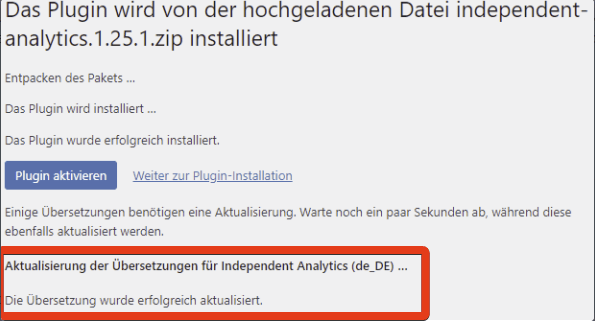
Solution 1: Update Translations via MainWP
This approach updates translations for all affected sites at once.1
Install the plugin
Use MainWP Dashboard to bulk install the plugin.
2
Sync your Dashboard
After installation, sync your MainWP Dashboard to detect the new plugin.
3
Navigate to Translation Updates
Go to MainWP > Updates > Translation Updates.
4
Update translations
Available translation updates for the newly installed plugin appear here. Apply these updates to ensure the plugin displays in the correct language on your child sites.
Solution 2: Update Translations on Child Sites
Use this approach if you need to update translations for specific sites.1
Install the plugin
Install the desired plugin via MainWP.
2
Access the child site
Log into the WordPress Admin of the child site where the plugin was installed.
3
Update translations
Go to Dashboard > Updates and update translations for plugins and themes.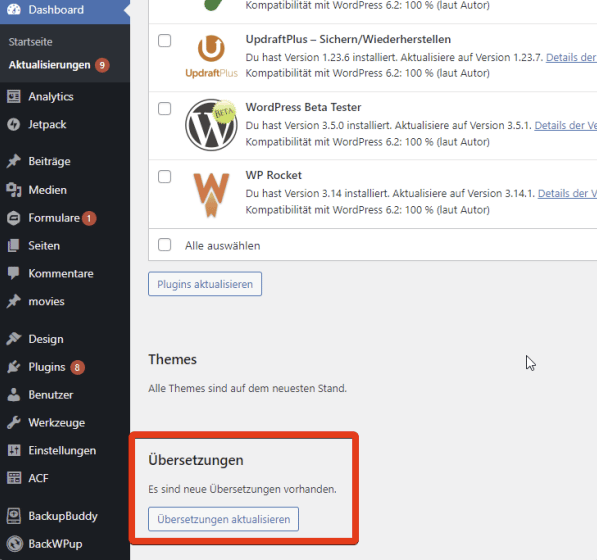
Best Practice
After any bulk plugin installation:- Sync your MainWP Dashboard
- Check MainWP > Updates > Translation Updates
- Apply any available translation updates
Self-Check Checklist
- Plugin bulk installed via MainWP
- Dashboard synced after installation
- Translation updates checked
- Translations applied to child sites
- Plugin displaying in correct language
Related Resources
- Managing Plugins - Plugin management overview
- Manage Updates - Updates management