
What You’ll Learn
- How to add custom columns to the Manage Sites table
- How to populate columns with site data
- How to position columns in the table
Prerequisites
- Custom Dashboard extension (free)
Example: Add a cURL Version Column
This example adds a column that displays the cURL version for each child site.1
Install Custom Dashboard
Install the Custom Dashboard extension.
2
Open the extension
Navigate to MainWP > Add-ons > Custom Dashboard.
3
Add the PHP code
Go to the PHP tab and add this code:
4
Save changes
Click Save Changes.
5
Verify the column
Navigate to MainWP > Sites > Manage Sites to see the new column.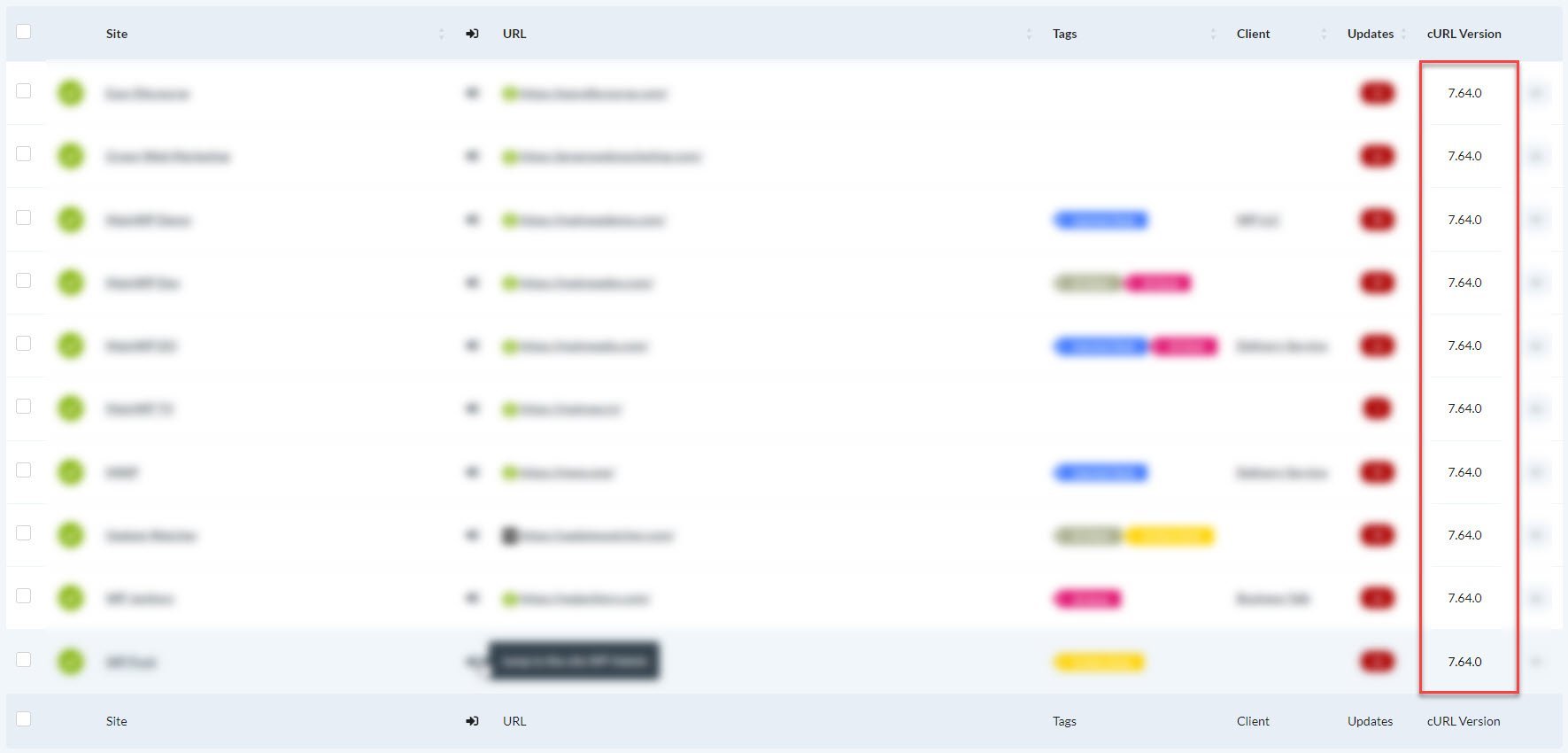
6
Position the column
Drag and drop the column header to your preferred position.
How It Works
The code uses two WordPress filters:Code Structure
Available Site Data
You can access various site information through themainwp_getwebsiteoptions filter:
child_curl_version- cURL versionchild_openssl_version- OpenSSL version used by cURLchild_version- MainWP Child versiondb_size- Database sizedebug_mode- Whether WordPress debug mode is enabledformat_datetime- Site timezone, date format, and time format settingsip- Server IP addressmemory_limit- PHP memory limitmysql_version- MySQL versionphpversion- PHP versionsite_lang- Site localesite_public- Search engine visibility valuethemeactivated- Active theme namewpversion- WordPress version
child_site_info is not a field returned by site_info. The site_info option already contains the available site data as an array.Other Column Examples
- Create a column that outputs any value or HTML you assign to
$item['column_key']
Self-Check Checklist
- Custom Dashboard extension installed
- PHP code added and saved
- New column appears in Manage Sites table
- Column displays correct data
- Column positioned as desired
Related Resources
- MainWP User Interface - Table customization overview
- Custom Dashboard Extension - Extension documentation