
What You’ll Learn
- How to disable individual Site Hardening checks
- How to disable multiple checks at once
- Available check identifiers
Prerequisites
- Custom Dashboard extension (free)
Why Remove Site Hardening Checks
Some security checks may not apply to your environment. For example:- You intentionally keep debug mode enabled on development sites
- Your server configuration requires specific PHP settings
- Certain inactive themes are kept for testing purposes
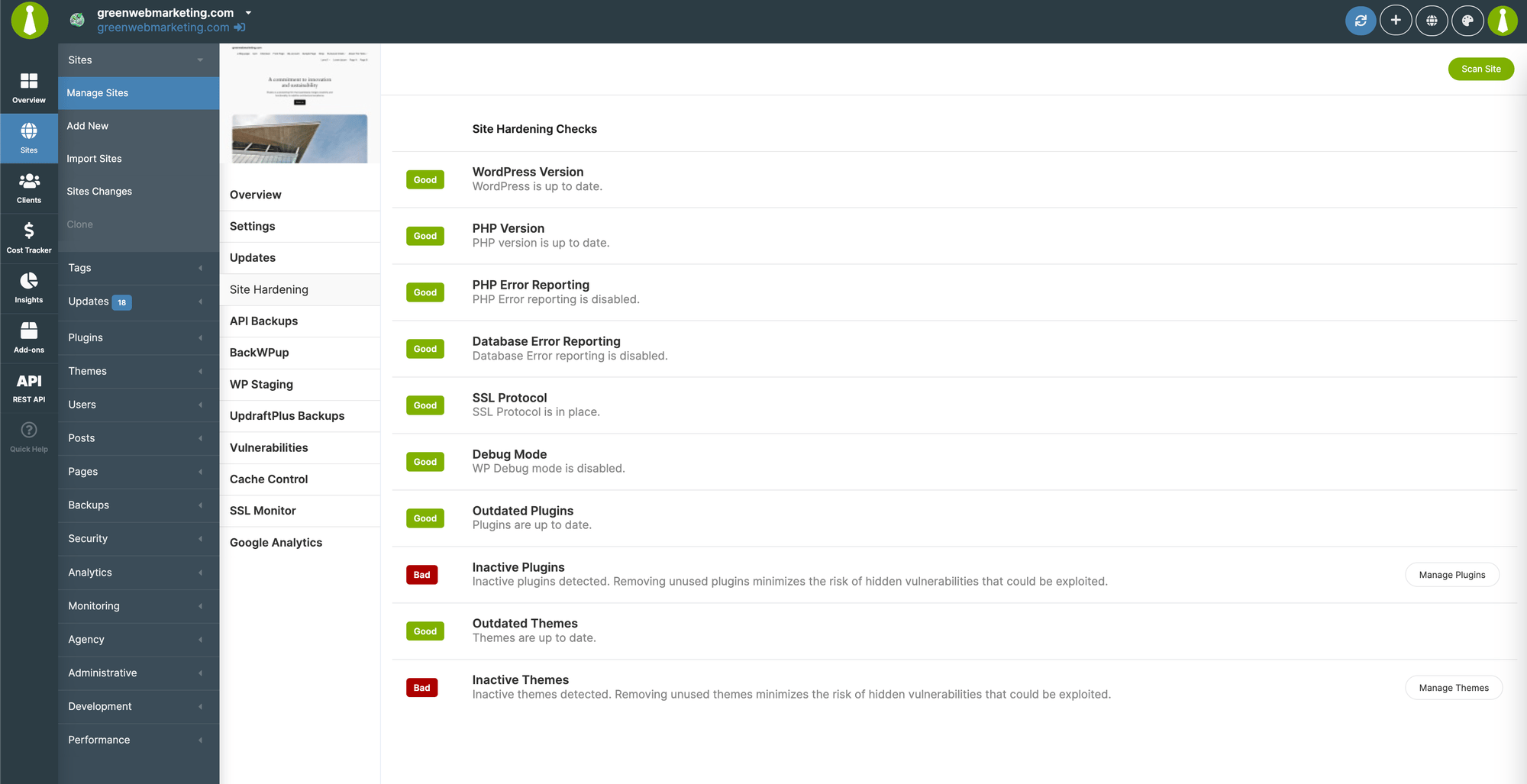
Disable a Single Check
1
Open Custom Dashboard
Navigate to MainWP > Add-ons > Custom Dashboard.
2
Add the PHP code
Go to the PHP tab and add this code:
3
Customize the identifier
Replace
'sec_inactive_themes' with the identifier for the Site Hardening check you want to disable.4
Save changes
Click Save Changes.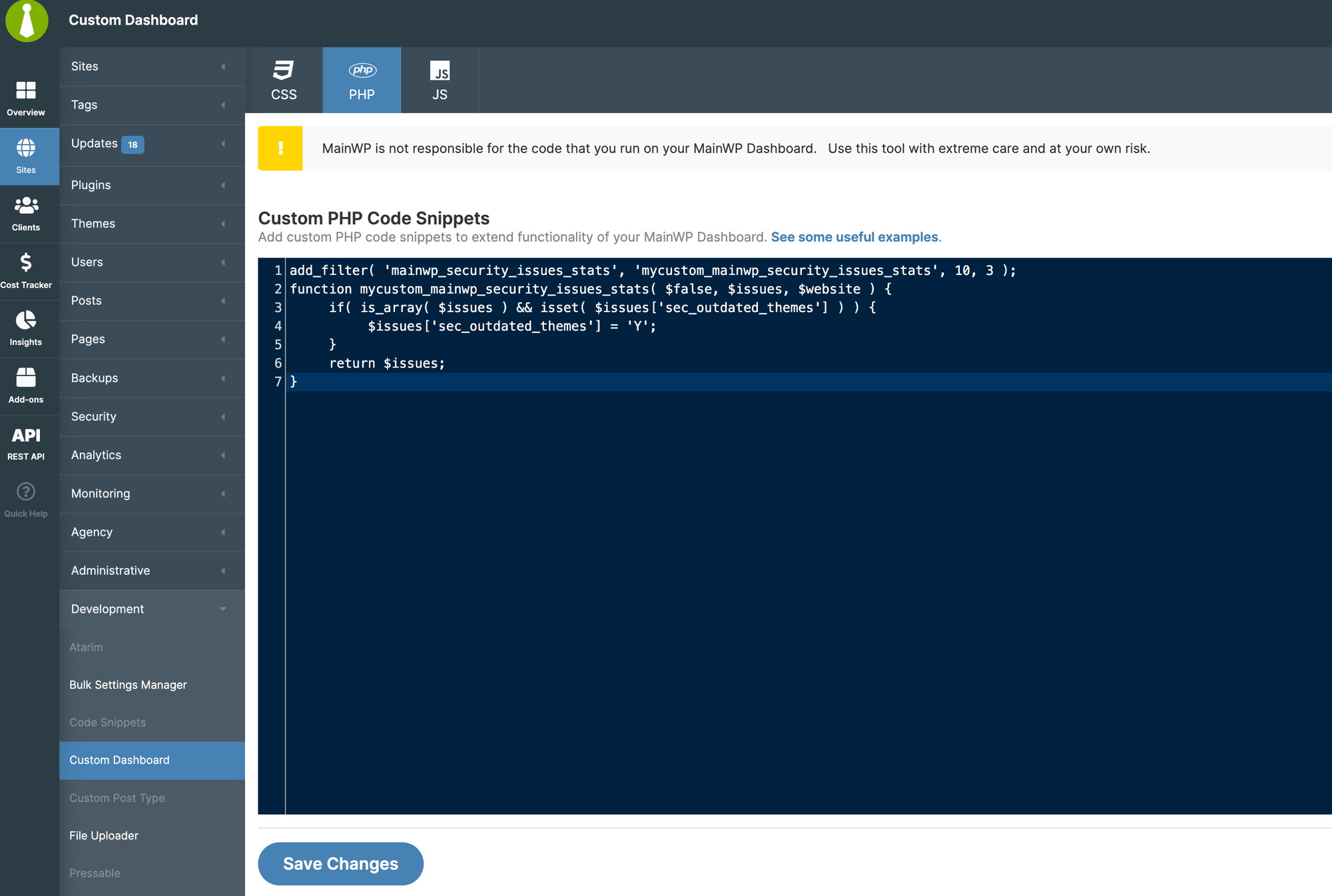
Available Check Identifiers
Disable Multiple Checks
To disable several checks at once, use this code and uncomment the checks you want to disable:// are commented out and the check remains active. Remove the // to disable that check.
Restore Checks
To re-enable a check:- Return to the Custom Dashboard extension
- Remove the corresponding line from the PHP code (or comment it out with
//) - Click Save Changes
Self-Check Checklist
- Custom Dashboard extension installed
- PHP code added to PHP tab
- Correct identifiers used for checks to disable
- Changes saved
- Site Hardening scan no longer shows disabled checks
Related Resources
- Custom Dashboard Extension - Extension documentation
- Vulnerability Checker Extension - Security scanning
- How Secure is MainWP - Security overview